Why Does Issue Tracking Matter on Construction Sites?
Problems on site are normal. A defect appears in finished work. A supervisor notices an unsafe condition. An inspection finds that something does not match the specification. A near-miss happens and nobody is hurt.
Finding the problem is the easy part. The harder part is making sure it gets dealt with.
On many sites, issues are reported in a way that feels efficient at the time: a quick message in a group chat, a note in a notebook, a comment on an inspection sheet or a conversation in the cabin. The trouble comes afterwards. Who took responsibility? Was it fixed? Did anyone check? Where is the photograph?
When the answers are unclear, issues stay open, get repeated or reappear at the worst possible moment, such as a client walkround, a handover or an investigation.
A construction issue tracking app is designed to close that gap. Its purpose is not to record more information. It is to make sure each problem has an owner, a status and an outcome.
What Is a Construction Issue Tracking App?
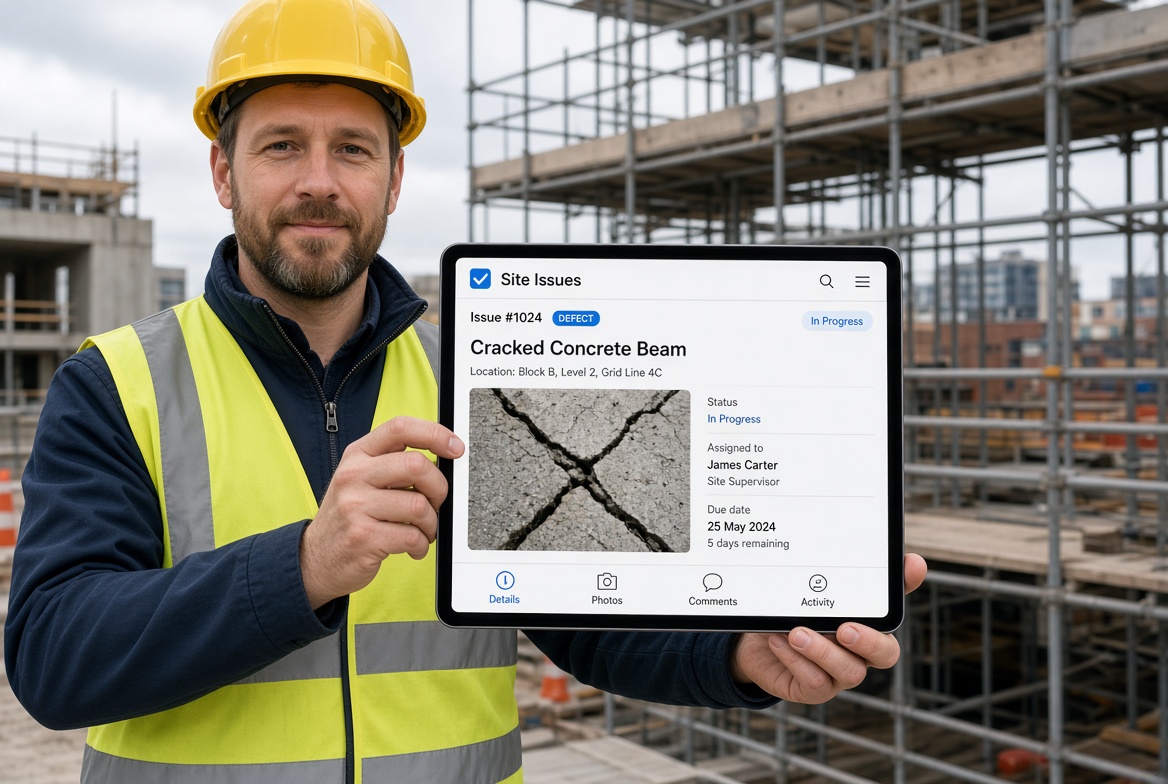
An issue tracking app lets site teams record problems, assign responsibility, monitor progress and document how each one was resolved.
Different products use different names for the same idea, including snagging, defect management, non-conformance reporting, observations and action tracking.
What they have in common is a workflow. Each issue moves through a series of stages, and the app keeps a record of what happened at each one.
Before looking at those stages, it helps to understand the types of issue a site typically needs to manage.
Common types of site issue
- Near-misses: Events that could have caused harm or damage but did not.
- Non-conformances: Work or materials that do not meet the specification, drawing, standard or procedure.
- Defects: Faults in completed or in-progress work that need correcting.
- Observations: Points noted on site that may not yet be a problem but should be recorded or monitored.
These are not always treated in the same way. A near-miss may lead to a review of a procedure, while a defect leads to a repair. A useful app lets you separate them so that each is tracked and reported appropriately.
The Issue Lifecycle: Eight Stages from Finding to Closing
Think of every issue as a journey. The app you choose should support each stage without making the person on site do extra work.
| Stage |
What should happen |
Where it often goes wrong |
| 1. Spot |
Someone notices a problem |
It is mentioned verbally and forgotten |
| 2. Record |
The issue is logged with a description, location and evidence |
Details are vague and there is no photograph |
| 3. Classify and prioritise |
The type and urgency are decided |
Everything is treated as equally urgent, or nothing is |
| 4. Assign |
A named person is made responsible, with a due date |
Responsibility is assumed rather than agreed |
| 5. Resolve |
The issue is dealt with |
The fix happens but is not recorded |
| 6. Verify |
Someone checks the fix is satisfactory |
The work is assumed to be done |
| 7. Close out |
The issue is closed with evidence of the outcome |
It stays open indefinitely, or is closed with no proof |
| 8. Review |
Patterns and repeat problems are analysed |
Nobody looks at the bigger picture |
Stage 1: Spot
Issues are found by people who are already busy doing something else. If reporting a problem takes more than a minute, it will not be reported.
What the app should do: Make it possible to start an issue quickly from a phone, from within an inspection or from a standalone screen.
What to look for: A short path from noticing to logging, with minimal required fields at the start. Extra detail can be added afterwards.
Stage 2: Record
A vague report creates work for everyone who has to deal with it. A good record answers the obvious questions without a follow-up call.
What the app should do: Capture what the problem is, where it is and what it looks like.
What to look for:
- Photographs, video and voice notes attached directly to the issue.
- Location information, such as the project, area, or a geotag.
- The ability to log an issue from within an inspection, so the finding and the inspection stay connected.
- Capture that works without a connection, so the issue can be logged on the spot in a basement or plant room.
How to test it: Log an issue in flight mode, with a photograph, and check that it arrives correctly when the device reconnects.
Stage 3: Classify and Prioritise
Not every issue deserves the same response. A hazard that could injure someone today needs different handling from a cosmetic defect that can wait.
What the app should do: Let you set the type and the urgency, so the most important items are visible first.
What to look for: Clear categories (for example near-miss, non-conformance, defect, observation), a way to set priority or severity and the ability to filter and sort by both.
Watch out for: Too many categories. If people cannot quickly decide where an issue belongs, they will pick the first option or skip it.
Stage 4: Assign
This is the stage where most manual processes fail. Without a named owner, everyone assumes someone else is dealing with it.
What the app should do: Assign each issue to a specific person, with a due date, and notify them.
What to look for:
- Assignment to individuals, including subcontractors where appropriate.
- Due dates and clear visibility of what is overdue.
- Notifications that reach people who spend most of their time on site rather than at a desk.
- The ability to reassign if circumstances change, with a record of the change.
How to test it: Assign an issue to someone outside the evaluation team and see whether they understand what is expected without further explanation.
Stage 5: Resolve
The person responsible deals with the issue. The app should make it easy to record what was done, not add a second job on top of the fix.
What the app should do: Allow the assignee to add comments, photographs and a status update from their phone.
What to look for: A simple way to move the issue forward, and a visible history of updates so that anyone can see what has happened without asking.
Stage 6: Verify
A fix that nobody has checked is only a claim. Verification is often the missing stage, and it matters most for safety-related issues and for work that will be covered up.
What the app should do: Support a separate check by someone other than the person who did the work, where your procedure calls for it.
What to look for: The ability to require review before an issue can be closed, and to record who checked it and when.
Watch out for: Apps that let the person who raised or fixed the issue close it without any check. That may be fine for minor items, but you will want a choice.
Stage 7: Close Out
Closing an issue should be a deliberate step with evidence, not simply a status change.
What the app should do: Record the outcome, who closed it and when, and keep the supporting evidence attached.
What to look for:
- A before-and-after record, such as photographs of the problem and the corrected work.
- A complete history from first report to closure.
- The ability to reopen an issue if the fix does not hold.
Why it matters: When someone later asks what happened with a particular problem, the answer should be easy to find and easy to understand.
Stage 8: Review
Individual issues are useful. Patterns are even more useful.
What the app should do: Let managers see what is open, what is overdue and which problems keep recurring.
What to look for:
- A view of open and overdue issues across projects.
- The ability to filter by type, area, trade, person or date.
- Reports that combine issues with the inspections that found them.
Questions this should help answer:
- Which issues are taking longest to close?
- Are the same problems appearing on several sites?
- Which areas or packages generate the most findings?
- Are near-misses being reported at a healthy rate, or not at all?
A low number of reported issues does not always mean a safe or well-built site. It can also mean people are not reporting.
Where Do Paper and Messaging Apps Fall Short?
Many sites manage issues with notebooks, spreadsheets and group chats. These can work for a small team on one site, and they are quick to start. The limitations appear as the number of people and issues grows.
| Requirement |
Paper and notebooks |
Spreadsheet |
Messaging app |
Issue tracking app |
| Quick to log |
Yes |
Often not on site |
Yes |
Designed for it |
| Photograph linked to the issue |
Awkward |
Manual |
In the thread, hard to find later |
Built in |
| Clear owner and due date |
Rarely |
Possible with discipline |
Easily lost |
Built in |
| Status visible to everyone |
No |
If kept updated |
No |
Yes |
| Reminders for overdue items |
No |
Needs setup |
No |
Often available |
| History from report to closure |
Scattered |
Depends on maintenance |
Buried in conversation |
Included |
| View across several sites |
No |
Needs combining files |
No |
Possible |
The point is not that these tools are wrong. It is that they depend on people remembering to keep them updated, and the cost of that discipline rises with every additional site and subcontractor.
What Should You Look for in a Construction Issue Tracking App?
Beyond the lifecycle, a few practical points make the difference between an app that gets used and one that does not.
Speed on site. Test how long it takes to log an issue with a photograph. If it is slower than sending a message, people will send a message.
Offline capability. Issues often arise in places with poor signal. Check that you can log, update and close issues without a connection and that data synchronises correctly afterwards.
Connection to inspections. If most issues come from inspections, check that you can raise an issue directly from an inspection finding and that the two stay linked.
Flexible categories. You should be able to reflect the way your business separates near-misses, defects, non-conformances and observations.
Clear ownership and notifications. Check how assignees are notified, and whether subcontractors can be included without giving them access to everything.
Reporting. Look for filters and reports that show open, overdue and recurring issues.
Data export. Check that you can retrieve your records, including photographs, if you change provider.
How to Test an Issue Tracking App with a Real Scenario
A demonstration will show the best case. A realistic test shows the everyday experience.
- Log an issue on site. Use a phone, add a photograph and a short description. Time it.
- Do it again offline. Switch on flight mode and repeat. Reconnect and check what arrived.
- Assign it. Give it to a colleague who has not seen the app before.
- Update and resolve. Ask the colleague to add a comment and a photograph of the fix.
- Verify and close. Have someone different check and close the issue.
- Review the history. Check that the full sequence, with names and times, is easy to read.
- Look at the overview. Create a few more issues and check that the open and overdue ones are easy to see.
If any step needs explaining more than once, expect the same difficulty from your wider team.
Construction Issue Tracking App Checklist
- [ ] An issue can be logged in under a minute from a phone.
- [ ] Photographs, video and voice notes attach directly to the issue.
- [ ] Issues can be logged and updated without a connection.
- [ ] Issues can be raised directly from an inspection finding.
- [ ] Near-misses, non-conformances, defects and observations can be separated.
- [ ] Each issue has a named owner and a due date.
- [ ] Assignees are notified in a way that reaches people on site.
- [ ] A separate verification step is available where needed.
- [ ] Closing an issue records who closed it, when and with what evidence.
- [ ] Closed issues can be reopened.
- [ ] Open and overdue issues are easy to see across projects.
- [ ] The full history of any issue can be found and read quickly.
- [ ] Records, including photographs, can be exported.
- [ ] The workflow has been tested on a real scenario with real users.
How KaelSite Handles Issues
KaelSite is a mobile-first construction compliance platform for UK teams. Its Issue System is designed for the types of problem described above, including near-misses, non-conformances, defects and observations. Because KaelSite's inspections work offline-first, with photo, video, voice and geotag capture, findings can be recorded where and when they happen.
As with any tool, test it using the scenario above and judge whether it fits the way your site teams actually work.
Frequently Asked Questions
What is a construction issue tracking app?
A construction issue tracking app is software that lets site teams record problems, assign responsibility, monitor progress and document how each issue was resolved. It may be called a snagging, defect management or non-conformance tool.
What is the difference between a defect, a non-conformance and an observation?
A defect is a fault in work that needs correcting. A non-conformance is work or material that does not meet the specification, standard or procedure. An observation is a point noted on site that may need monitoring. A near-miss is an event that could have caused harm but did not. Businesses define and use these terms in slightly different ways, so check how your own procedures separate them.
How do you close out an issue properly?
Record what was done, have someone check the fix where appropriate and keep the evidence, such as photographs, attached to the issue. Close it with a note of who closed it and when. A good system also lets you reopen an issue if the problem returns.
Can I use WhatsApp or a spreadsheet for issue tracking?
For a small team on one site, they can work. The difficulty is that evidence, ownership and status are scattered, and everything depends on someone keeping it up to date. As sites, people and subcontractors increase, this becomes harder to manage.
Does an issue tracking app work without signal?
Some do and some do not. Check that you can log, update and close issues offline, including photographs, and that the records synchronise correctly when the device reconnects.
Should subcontractors have access to an issue tracking app?
Often it is useful, so they can see and update issues assigned to them. Check that you can limit what they see to what is relevant to them.
Can an issue tracking app help with compliance?
It can support compliance-related processes by showing that findings were recorded, assigned, resolved and verified. It does not make a site compliant on its own, since that depends on competent people and the procedures in use on the project.
Final Thoughts
Every site finds problems. The test of a good process is whether each one is dealt with, checked and closed in a way you can show afterwards.
Paper, spreadsheets and messaging apps can handle this for a small operation, but they rely on constant attention. An issue tracking app takes over the routine parts of the job, such as ownership, reminders and history, so that the site team can concentrate on fixing the problem.
Choose a tool by following one issue from start to finish. If it works smoothly for the people on site, it is likely to work for the rest of the business.
This article is intended as general information for orientation and does not constitute legal or professional advice. Software can support site processes but does not replace competent people, project procedures or the responsibilities set out in applicable regulations and standards.
Comments (0)
Add a Comment
No comments yet. Be the first to comment!